Custom Meta avatars on non-Meta platforms
Follow the steps in order.
This guide shows how to install Meta Quest Link, add the Eleven Avatar Helper, find its install path, and launch the 2D helper app to generate your avatar code.
Before you begin
Use a Windows PC with Meta Quest Link.
The helper app creates a transfer code that expires after 5 minutes. Restarting the helper app gives you a new code.
Walkthrough
Avatar Helper setup steps
-
01
-
02
Sign in with an account
Sign into Meta Quest Link with a Meta or Oculus account. If you do not have one, create an account first, then sign in.
Create or manage account -
03
Get helper access
Open the helper access link and accept the Eleven Table Tennis Avatar Helper app.
Accept helper access -
04
Confirm the helper appears in your app library
After accepting access, the helper should appear in your Meta Quest Link library.

The helper is visible in your library. -
05
Install the helper if needed
If the helper is not already installed, click install and wait for it to finish.
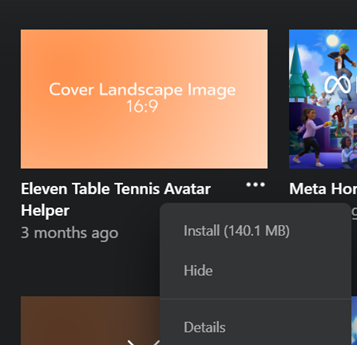
Install it if Meta Quest Link shows an install button. -
06
Click the three dots
Open the extra options menu for the Avatar Helper app.
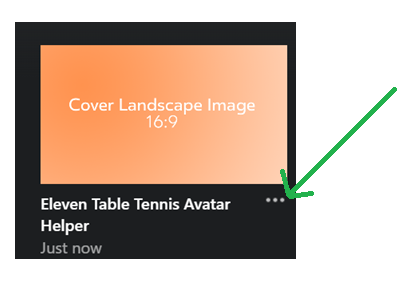
Use the three-dot menu on the helper app. -
07
Click Details
In the menu, choose the details option.
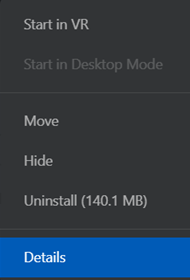
Open the app details view. -
08
Click the path to copy it
In the details screen, click the install path at the top to copy it to your clipboard.
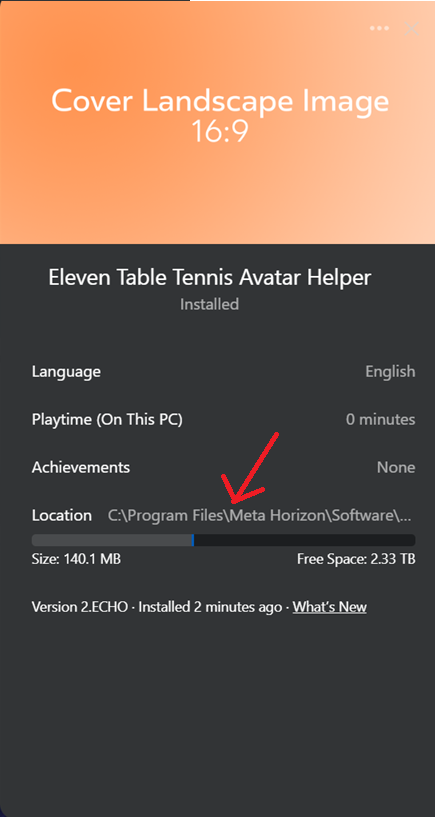
Click the path shown at the top of the details panel. -
09
Confirm the link was copied
Meta Quest Link should show a confirmation that the location was copied.
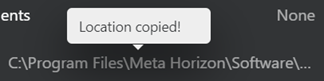
The copied confirmation appears briefly. -
10
Open that path in File Explorer
Paste the copied path into File Explorer and run the 2D start script called
ElevenStartJust2d.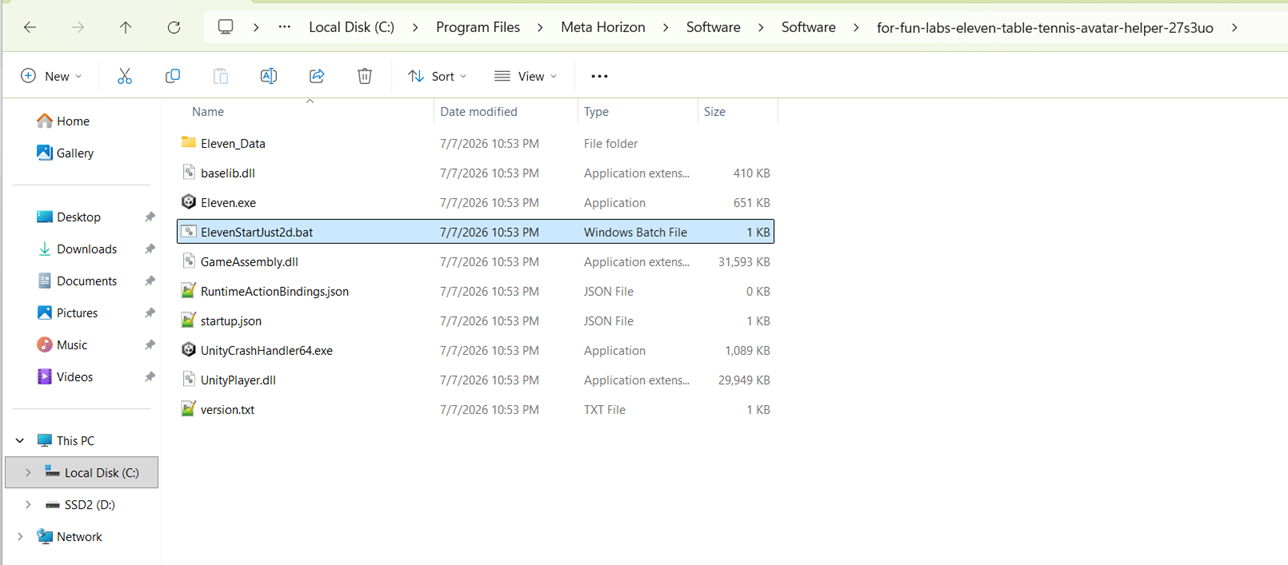
Run ElevenStartJust2dfrom the helper folder. -
11
Use the code shown in the helper app
The app shows your current avatar and a transfer code. The code expires in 5 minutes. Restarting the app generates a new code.
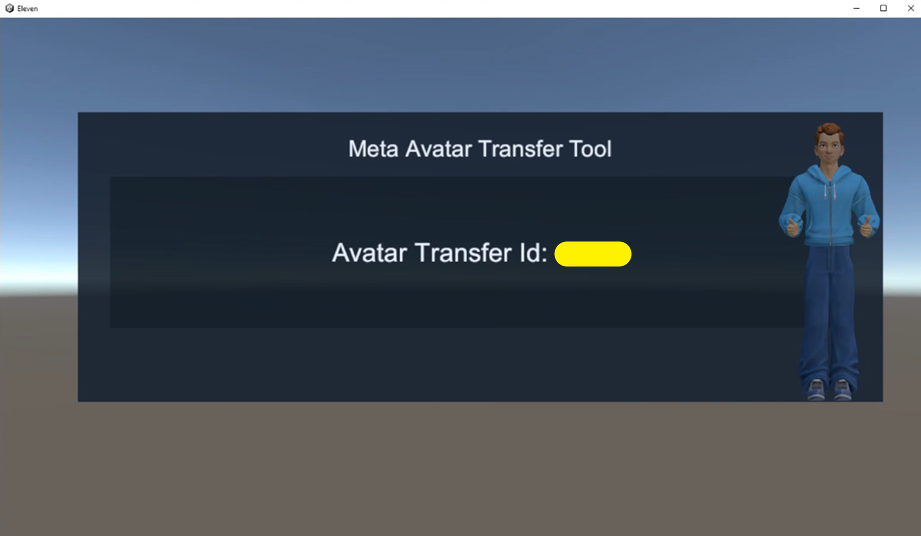
Enter this code in the avatar transfer field inside Eleven Table Tennis. -
12
Edit your Meta avatar
You can edit your avatar from Meta's avatar editor, then restart the helper app when you want a fresh transfer code.
Open Meta avatar editor